Network Latency Reduction: A Technical Approach to PING Optimisation for UK Online Gaming
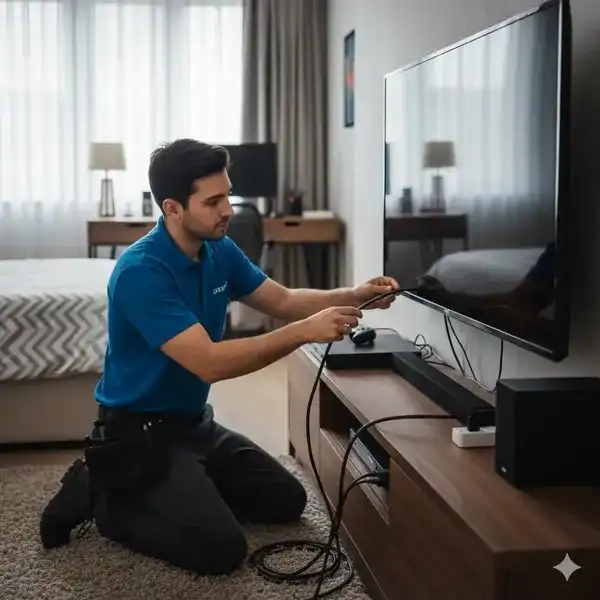
As a UK-certified network installer, I, Gary Pearce, understand the critical importance of a stable, low-latency network for online gaming. In the competitive landscape of modern digital arenas, a fraction of a second can be the difference between victory and defeat. This comprehensive guide is engineered to provide UK gamers with the technical insights and actionable strategies required to minimise network latency, thereby optimising their 'ping' and enhancing their online experience.
Understanding Network Latency: The Unseen Adversary
Before we delve into solutions, it's paramount to establish a clear understanding of what network latency truly is and how it impacts your gaming. Latency, in simple terms, is the delay before a transfer of data begins following an instruction for its transfer. In networking, it's often measured as the Round-Trip Time (RTT) for a small packet of data to travel from your computer to a server and back. This RTT is precisely what the ping utility measures.
For online gaming, every millisecond (ms) of latency counts. High latency manifests as "lag" – characters teleporting, delayed hit registration, or actions not executing in real-time. This isn't merely an inconvenience; it fundamentally alters the gameplay experience, often unfairly disadvantaging players with higher latency.
#### Components of Network Latency: A Deep Dive
Network latency isn't a singular phenomenon but rather a cumulative effect of several distinct delays:
1. Propagation Delay: This is the time it takes for a signal to travel across a physical medium. It's dictated by the speed of light in the medium (fibre optic cable, copper wire, air) and the geographical distance between two points. For instance, a packet travelling from London to a game server in Frankfurt, Germany, will inherently incur a propagation delay due to the physical distance (~600 miles).
- Calculation Example: Speed of light in fibre is approximately 200,000 km/s (or 200 km/ms). A 600-mile (approx. 965 km) one-way trip would take roughly 965 km / 200 km/ms ≈ 4.825 ms. The RTT propagation delay would be ~9.65 ms. This is a fundamental, irreducible minimum for that distance.
2. Transmission Delay: The time required to push all the bits of a packet onto the transmission medium. This is determined by the packet size and the link's bandwidth.
- Formula:
Transmission Delay = Packet Size (bits) / Bandwidth (bits/second) - While individual game packets are small, aggregating many packets can increase this, especially on lower bandwidth connections.
3. Queuing Delay: This occurs when a router or switch has more traffic arriving than it can forward immediately. Packets are held in buffers (queues) until the device can process them. High network congestion (e.g., multiple users streaming 4K video while gaming) significantly increases queuing delay, leading to bufferbloat.
4. Processing Delay: The time taken by network devices (routers, switches, network interface cards) to process packet headers, perform error checks, and determine forwarding paths. Modern hardware typically has very low processing delay, but older or overloaded equipment can introduce noticeable lag.
#### Key Metrics Beyond Ping: Jitter and Packet Loss
While ping (RTT) is the primary metric, a truly stable gaming connection also requires minimal jitter and packet loss:
- Jitter: The variation in RTT. High jitter means your ping is inconsistent, causing erratic lag spikes even if the average ping is low. This is particularly detrimental to real-time interactions.
- Packet Loss: Occurs when data packets fail to reach their destination. Even a small percentage of packet loss (e.g., 1-2%) can severely disrupt gameplay, forcing retransmissions that increase effective latency and can lead to connection drops.
Identifying Latency Bottlenecks: A Diagnostic Approach
Before implementing solutions, a systematic diagnostic process is essential to pinpoint where latency is being introduced.
#### Initial Assessment Checklist:
1. ISP Speed Test: Use reliable services like Speedtest.net or Fast.com. Note download, upload, and crucially, the latency reported to a nearby server. This gives a baseline for your ISP's performance.
2. Ping Your Local Router: Open Command Prompt (Windows) or Terminal (macOS/Linux) and type ping 192.168.1.1 (or your router's default gateway IP, usually found via ipconfig or ifconfig). A good result should be <1ms. If this is high, it indicates a local network issue.
3. Ping a Reliable External Target: ping 8.8.8.8 (Google DNS) or ping 1.1.1.1 (Cloudflare DNS). This tests your connection to a well-connected, external server. Results should ideally be under 20ms for most UK broadband connections.
4. Ping the Game Server (If Known): If you can obtain the IP address of the game server you play on, directly pinging it provides the most accurate RTT for your specific gaming scenario.
5. Traceroute Analysis: Use tracert (Windows) or traceroute (macOS/Linux) to a game server IP or an external target like Google DNS. This command reveals the path your data takes and the latency at each "hop" (router).
- Example (Windows):
tracert 8.8.8.8 - Interpretation: Look for a sudden increase in latency at a particular hop. If it's on your local network (first few hops), the issue is local. If it jumps significantly further down the line, it might be your ISP's backbone network or the upstream provider. Asterisks (
*) can indicate packet loss or routers configured not to respond to ICMP.
6. Local PC Resource Monitor: Open Task Manager (Windows, Performance tab) or Activity Monitor (macOS, Network tab) while gaming. Check CPU, GPU, RAM, and Disk usage. Sometimes, local hardware bottlenecks or background processes can mimic network lag.
#### Diagnostic Tools:
-
ping: Fundamental for RTT measurement. -
tracert/traceroute: Essential for path analysis and hop-by-hop latency identification. -
pathping(Windows): Combinespingandtracertto provide more detailed statistics, including packet loss at each hop. -
iPerf3: For advanced users,iPerf3allows you to test raw bandwidth and latency between two points on your local network, isolating internal network issues from external ones. - Wireshark (Advanced): A powerful packet analyser that can capture and decode network traffic, providing deep insights into delays, retransmissions, and protocol-level issues.
Technical Strategies for Latency Reduction
Now, let's move to the practical, engineering-grade strategies for optimising your connection.
#### I. Physical Layer Optimisation: The Foundation
The most significant and often overlooked improvement comes from optimising your physical connection.
1. Wired Connection (Ethernet) is Paramount:
- Comparison: Ethernet vs. Wi-Fi:
- Wi-Fi (Wireless Fidelity): Inherently introduces higher latency and variability (jitter) due to its shared medium nature (CSMA/CA - Carrier Sense Multiple Access with Collision Avoidance). Signals can suffer from interference from other Wi-Fi networks, Bluetooth devices, microwaves, and even physical obstructions. Packet retransmissions due to interference directly increase latency.
- Ethernet: Provides a dedicated, full-duplex connection. There's no airwave contention, minimal interference (if properly shielded), and no overheads associated with wireless protocols. This results in significantly lower, more stable latency.
- Recommendation: For any serious online gamer, a direct Ethernet connection from your PC/console to your broadband router is non-negotiable. Use Cat5e, Cat6, or ideally Cat6a cabling for future-proofing and minimal crosstalk.
2. Network Cabling Standards:
- Ensure your Ethernet cables are certified (e.g., TIA/EIA-568) and rated appropriately for your network speed (e.g., Cat5e for Gigabit Ethernet, Cat6/6a for 10 Gigabit Ethernet over shorter distances). Poor quality or damaged cables can introduce errors and latency.
3. Powerline Adapters (PLC):
- These adapters extend network connectivity using your home's electrical wiring.
- Pros: Can be a convenient alternative to running long Ethernet cables where Wi-Fi is poor.
- Cons: Performance is highly dependent on the quality of your electrical wiring, circuit separation, and interference from other appliances. They can introduce significantly more latency and jitter than direct Ethernet, often performing worse than a well-optimised Wi-Fi connection. Use them only if a direct Ethernet run is genuinely impossible and Wi-Fi is unusable.
#### II. Network Hardware & Configuration: The Control Centre
Your router and its configuration are central to latency management.
1. Router & Modem Selection:
- ISP-Provided Routers: While functional, many ISP-supplied routers are basic, often lacking advanced QoS features, powerful CPUs, or ample RAM. This can lead to increased queuing and processing delays under load.
- Third-Party Gaming Routers: Dedicated gaming routers often feature:
- More powerful multi-core CPUs for faster packet processing.
- Larger RAM buffers to handle bursts of traffic without dropping packets.
- Advanced QoS engines specifically designed to prioritise gaming traffic.
- Better Wi-Fi radios and antenna arrays (though for gaming, you should be wired).
- Recommendation: Consider upgrading to a high-performance router if your ISP-provided unit is struggling.
- Firmware Updates: Always keep your router's firmware updated. Manufacturers frequently release updates that improve performance, stability, and security.
2. Quality of Service (QoS):
- What it is: QoS is a set of technologies that guarantee a certain level of performance for specific types of network traffic. Its primary goal in latency reduction is to prioritise real-time gaming packets over less time-sensitive traffic (like large downloads or streaming video).
- Mechanisms:
- DSCP (Differentiated Services Code Point): Marks packets at the network layer, allowing routers to apply different forwarding policies based on these marks.
- WMM (Wi-Fi Multimedia): A Wi-Fi Alliance certification for wireless QoS, prioritising voice and video over best-effort data.
- Bandwidth Prioritisation/Reservation: Allows you to allocate a minimum amount of bandwidth to a specific device or application.
- Configuration Guide (General Steps):
- By Device: Prioritise the MAC address or IP address of your gaming PC/console.
- By Application/Port: Some routers allow you to specify common game ports (e.g., specific UDP/TCP ports for Steam, Xbox Live, PlayStation Network) or even detect game traffic automatically.
- Caveat: QoS is most effective on the upload stream, as your router is the first point of congestion for your outgoing data. It can also help manage downloads if your internal network is congested.
1. Access Router Interface: Log into your router's web interface (typically 192.168.1.1 or 192.168.0.1).
2. Locate QoS Settings: Navigate to "QoS," "Traffic Manager," or "Prioritisation" settings.
3. Identify Game Traffic:
4. Set Priority: Assign the highest priority to your gaming device or traffic. Many routers offer "gaming" presets.
5. Bandwidth Control: If available, ensure your gaming device has sufficient guaranteed bandwidth, especially for upload, as game input data (small packets) needs to be sent reliably.
3. DNS Resolution Optimisation:
- Impact: While DNS primarily affects the initial connection time to a game server (resolving the server's domain name to an IP address), a slow or unreliable DNS server can introduce slight delays.
- Alternative DNS Servers: Public DNS servers often provide faster resolution and better reliability than ISP-provided ones.
- Google DNS:
8.8.8.8and8.8.4.4 - Cloudflare DNS:
1.1.1.1and1.0.0.1 - Configuration: You can change DNS settings on your router (affecting all connected devices) or directly on your gaming PC/console.
- Router: Log in, find DNS settings (often under WAN/Internet or LAN settings), and input the preferred servers.
- PC (Windows): Control Panel -> Network and Sharing Centre -> Change adapter settings -> Right-click Ethernet adapter -> Properties -> Internet Protocol Version 4 (TCP/IPv4) -> Properties -> "Use the following DNS server addresses."
4. Double NAT & UPnP:
- Double NAT: Occurs when two routers on your network are both performing Network Address Translation. This usually happens when you connect a personal router to an ISP-provided router/modem combo. Double NAT can cause issues with port forwarding, increase latency slightly, and interfere with online gaming features.
- Resolution: Configure your ISP device into "bridge mode" (if it's a modem/router combo) so your personal router handles all routing, or disable NAT on one of the devices.
- UPnP (Universal Plug and Play): Allows devices on a network to automatically discover and communicate with each other, including opening ports for online games.
- Pros: Convenience, ease of setup for many games.
- Cons: Significant security risk as it can open ports without explicit user consent.
- Recommendation: If security is a concern, disable UPnP and manually configure port forwarding rules for your specific game/console. This is more secure and reliable.
#### III. Operating System & Software Optimisation: Fine-Tuning Your Machine
Even with a perfect network, your local system can introduce latency.
1. Network Driver Updates:
- Always ensure your Network Interface Card (NIC) drivers are up-to-date. Visit the manufacturer's website (e.g., Intel, Realtek, Killer Networks) for the latest drivers, not just Windows Update. Outdated drivers can lead to inefficient packet processing and higher latency.
2. Background Applications:
- Close any unnecessary applications that consume significant bandwidth or CPU cycles. This includes streaming services, cloud backup/sync clients (OneDrive, Dropbox, Google Drive), torrent clients, and large downloads. Even background updates for other games or the OS can impact your connection.
3. Windows Network Settings (Advanced):
- Disabling Nagle's Algorithm (TCP NoDelay): Nagle's algorithm bundles small packets together to send them more efficiently, reducing the number of packets. While good for general web browsing, it can introduce a small delay for real-time applications like gaming.
- Method: Requires a registry edit. This is an advanced tweak and should be approached with caution.
-
HKEY_LOCAL_MACHINE\SYSTEM\CurrentControlSet\Services\Tcpip\Parameters\Interfaces\{Your_NIC_GUID} - Add a new DWORD (32-bit) value:
TcpNoDelayand set its value to1. - Add another DWORD (32-bit) value:
TcpAckFrequencyand set its value to1. - Warning: Incorrect registry edits can cause system instability. Backup your registry before making changes. This may not always yield a perceptible improvement and can sometimes negatively impact other network traffic. Test thoroughly.
- Network Adapter Advanced Properties: Access your NIC's advanced settings in Device Manager.
- Interrupt Moderation: Disabling or reducing this can decrease latency by processing packets immediately rather than batching them, though it might increase CPU usage.
- Jumbo Frames: Almost always keep this disabled for gaming. It's for specialised network environments (e.g., NAS to server) and causes issues if not universally supported on the network path.
- Green Ethernet/Energy Efficient Ethernet (EEE): Consider disabling this feature. While power-saving, it can introduce slight delays when the NIC has to ramp up from a low-power state.
4. Firewall & Antivirus Configuration:
- Ensure your firewall (Windows Firewall, third-party) and antivirus software are not excessively scrutinising game traffic, which can introduce processing delays. Add specific game executables and their associated ports to exception lists.
#### IV. ISP & External Factors: Beyond Your Control (Mostly)
Some factors are outside your immediate control but are crucial to understand.
1. Broadband Technology:
- FTTP (Fibre To The Premises): Offers the lowest inherent latency because data travels almost entirely over fibre optic cables directly to your home. It's the gold standard for speed and low latency.
- FTTC (Fibre To The Cabinet): Fibre runs to a street cabinet, then uses older copper lines to your home. The copper "last mile" introduces higher attenuation and more electrical interference, resulting in higher latency than FTTP.
- ADSL (Asymmetric Digital Subscriber Line): Entirely copper-based. Highest latency of the fixed-line options due to signal degradation and inherent technology limitations.
- Mobile Broadband (4G/5G): While increasingly fast, wireless mobile broadband is subject to cellular tower congestion, signal strength, and wireless overheads, often leading to inconsistent and higher latency compared to fixed-line solutions.
- Recommendation: If available, upgrade to FTTP. It provides the best foundation for low-latency gaming.
2. Line Quality:
- For FTTC/ADSL, the quality of your copper line (distance from cabinet, age of wiring, internal home wiring) can significantly impact latency and stability. Noise on the line can cause errors and retransmissions.
- Solution: Ensure your master telephone socket is clean and free of unnecessary extensions. If issues persist, an engineer visit from your ISP might be necessary to test the line.
3. Time of Day Congestion:
- During peak hours (evenings and weekends), ISP networks can experience congestion. While ISPs invest in backbone infrastructure, spikes in demand can still cause queuing delays at various points in their network.
- Solution: Unfortunately, this is largely out of your control. You might notice better ping during off-peak hours.
4. CDN/Game Server Location:
- The geographical distance to the game server is a fundamental limiter of latency (propagation delay). Playing on a UK server from the UK will always have lower latency than playing on an Australian server.
- Solution: Where possible, select game servers geographically closer to the UK. Most major games have dedicated EU servers, which are typically located in key internet hubs like London, Amsterdam, or Frankfurt.
Performance Verification Checklist:
After implementing these optimisations, verify your improvements:
- Re-run
pingtests to your router, Google DNS, and a target game server. Note the new RTT values and consistency. - Perform a
tracertto a game server to see if any hop latencies have changed. - Monitor in-game latency if the game provides an overlay.
- Conduct new ISP speed tests to confirm overall network health.
Conclusion
Achieving optimal network latency for online gaming in the UK requires a methodical, technical approach. By understanding the components of latency and systematically addressing potential bottlenecks from the physical layer through to software configuration, you can significantly enhance your gaming experience. While certain factors like geographical distance and ISP infrastructure have inherent limitations, many aspects of your home network are within your control.
As a UK-certified installer, I advocate for a wired Ethernet connection as the cornerstone of any gaming setup, complemented by intelligent router configuration and careful system optimisation. If you require professional assistance in diagnosing complex network issues or implementing these advanced configurations, please use the online contact page to reach out. A stable, low-latency connection isn't just a luxury; it's a strategic imperative for the serious online gamer.
---
Frequently Asked Questions (FAQ)
Q1: What is considered a "good" ping for online gaming in the UK?
A1: For competitive online gaming, a ping of under 20ms to UK/nearby EU servers is generally considered excellent. Pings between 20ms and 50ms are good and perfectly playable for most users. Pings above 50ms can start to introduce noticeable lag, with anything over 100ms significantly impacting gameplay quality and responsiveness, leading to a frustrating experience. For local network ping tests to your router, you should consistently see <1ms.
Q2: Can my ISP truly improve my ping, or is it mostly on my end?
A2: Both your ISP and your local network setup contribute to your overall ping. Your ISP is responsible for the quality of the connection from your home to their network and onwards to the internet backbone. If your broadband technology is older (e.g., ADSL vs. FTTP), your line is noisy, or their network infrastructure is congested, your ISP is directly impacting your latency. However, issues like using Wi-Fi, an old router, or background network usage on your local network are entirely within your control. Optimising your local setup can often yield significant improvements, but if your ISP's baseline service is poor, there's a limit to what you can achieve locally.
Q3: Is it worth upgrading my router specifically for gaming?
A3: Absolutely, in many cases. While an ISP-provided router might suffice for general browsing, dedicated gaming routers offer superior hardware (faster CPUs, more RAM) and advanced features like robust Quality of Service (QoS) engines. These allow for precise prioritisation of gaming traffic, effectively reducing queuing delays when multiple devices are active on your network. If you experience lag during peak household network usage, or if your current router frequently struggles under load, upgrading can lead to a noticeable improvement in consistent, low-latency gaming.
Q4: How does Wi-Fi 6 (802.11ax), Wi-Fi 6E, or Wi-Fi 7 (802.11be) affect gaming latency?
A4: Newer Wi-Fi standards like Wi-Fi 6, 6E, and 7 offer significant advancements in speed, capacity, and efficiency, which can indirectly benefit gaming. Technologies such as OFDMA (Orthogonal Frequency-Division Multiple Access) and TWT (Target Wake Time) in Wi-Fi 6/6E improve efficiency and reduce contention, which can lead to more stable latency (less jitter) and better performance in congested wireless environments. Wi-Fi 6E and 7 also introduce the 6GHz band, offering cleaner spectrum with less interference, which can result in lower and more consistent wireless latency compared to the crowded 2.4GHz and 5GHz bands. However, even with these improvements, a direct wired Ethernet connection will almost always provide lower, more stable, and more predictable latency than any wireless solution due to the fundamental physics and protocol overheads of radio transmission. For critical gaming, Ethernet remains the superior choice.
📊 Technical System Design Reference Infographic

Related Technical Resource: Optimising DFS Channels: Navigating UK Spectrum Regulations for High-Performance 5GHz WiFi
Technical Standards and Industry Resources
- External Compliance Guidance: Industry Standards & Compliance Resources
- Partner Site Feed: Gary Pearce Portfolio Services - Pages Hub


Comments